TrueNAS
TrueNAS is a storage platform with a built-in app catalog. The HLE agent runs as a container app on the NAS itself, so you can reach the TrueNAS web UI — and every app you install alongside it — from the internet without a port forward, a VPN, or a public IP.
This guide targets TrueNAS SCALE / Community Edition 24.10 “Electric Eel” or newer. Those releases run apps on Docker and let you install an app from a compose file, which is what the agent uses. 24.04 and earlier (Kubernetes-based apps) and TrueNAS CORE (FreeBSD) are not covered here.
Once installed, tunnels are added and removed from the dashboard under Connections; the NAS needs no further attention.
Install
Section titled “Install”Agent mode is the recommended setup: one container fronts the TrueNAS UI and every app on the box, and you add or remove endpoints from the dashboard without touching the NAS.
1. Get an agent token. In the dashboard, go to Connections → Agents → New and copy the credential. It is shown only once.
2. Install the app via YAML. In TrueNAS, go to Apps → Discover Apps, open the ⋮
menu, and choose Install via YAML. Name the app hle-agent and paste:
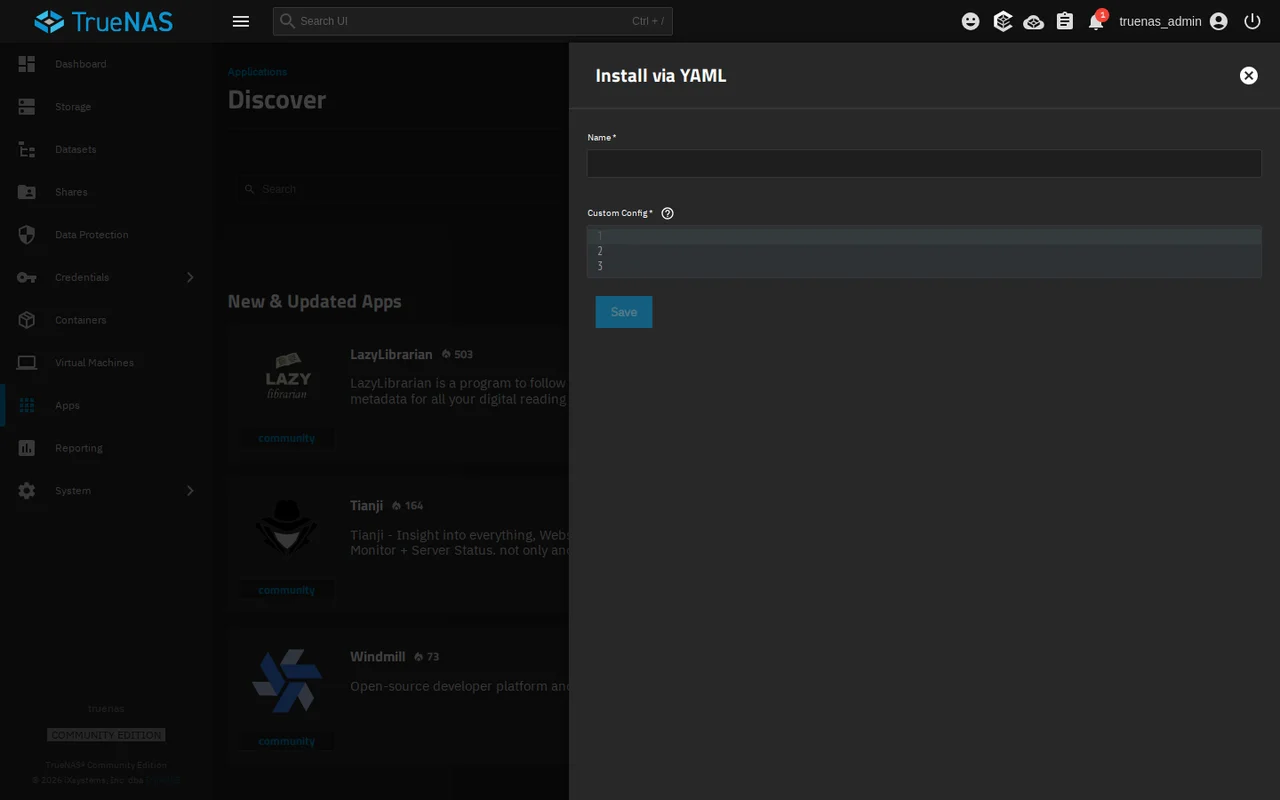
services: hle-agent: image: ghcr.io/hle-world/hle-docker:headless restart: unless-stopped environment: - HLE_AGENT_TOKEN=hle_your_token_here extra_hosts: - "host.docker.internal:host-gateway" volumes: - hle-agent-data:/datavolumes: hle-agent-data:Replace hle_your_token_here with the token from step 1. host.docker.internal is mapped to
the NAS host by extra_hosts, so endpoints can reach services listening on the host — the
TrueNAS UI and any app that publishes a host port.
3. Save. Click Save. The app shows Running under Apps → Installed, and the agent appears online under Connections → Agents in the dashboard within a few seconds.
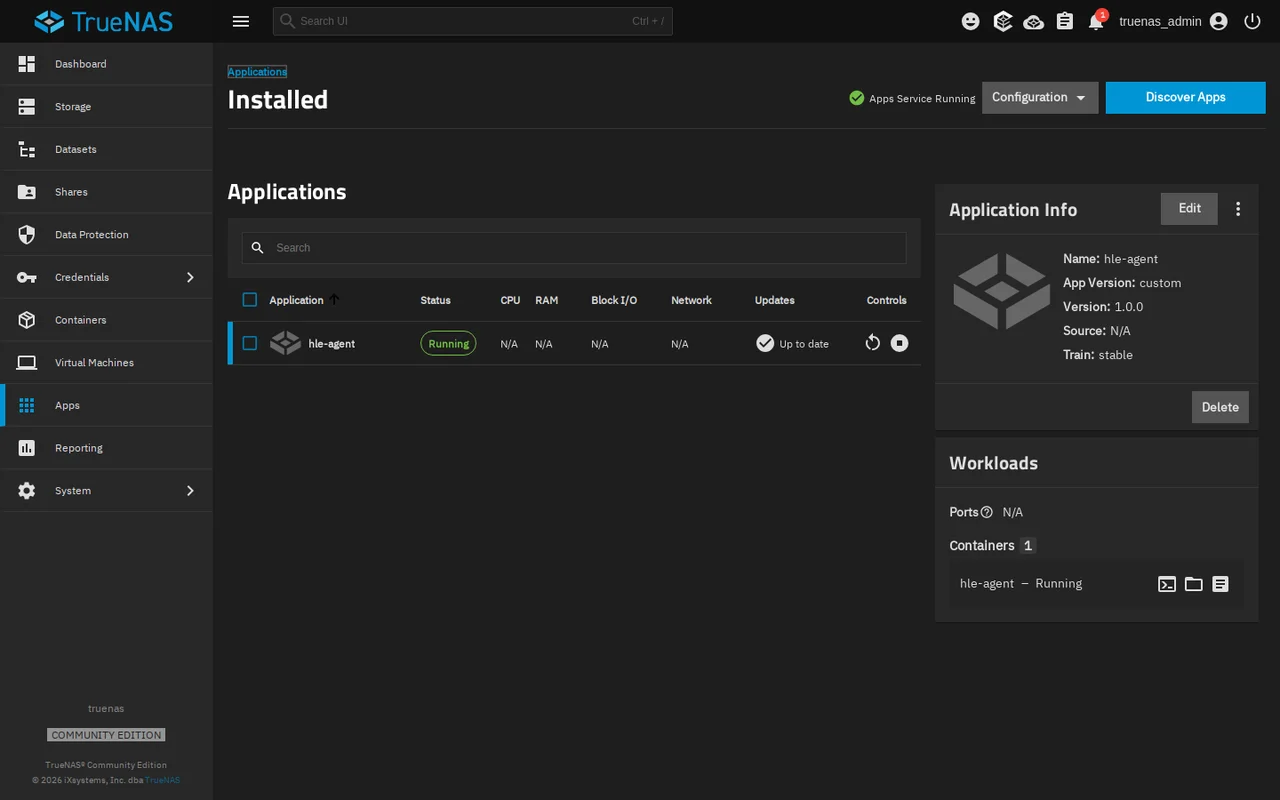
The agent runs on the moving ghcr.io/hle-world/hle-docker:headless tag.
Add endpoints
Section titled “Add endpoints”Add endpoints in the dashboard; they go live within seconds, no
restart. Point them at http://host.docker.internal:<port> — the port as it appears on the
NAS host, not the app’s internal port.
| Target | Endpoint URL |
|---|---|
| TrueNAS web UI | http://host.docker.internal:80 |
| Immich | http://host.docker.internal:30041 |
| Jellyfin | http://host.docker.internal:30013 |
| Nextcloud, or any other app | http://host.docker.internal:<its host port> |
TrueNAS shows each installed app’s host port on its card under Apps → Installed.
If you turned on HTTP → HTTPS redirect for the TrueNAS UI (System → General → GUI), the plain-HTTP endpoint only redirects. Point at the UI over TLS instead and turn Verify TLS off for that endpoint, since the NAS uses a self-signed certificate:
https://host.docker.internal:443Update
Section titled “Update”The :headless tag moves, so updating the agent means pulling the image again. When TrueNAS
marks an update on the hle-agent card under Apps → Installed, click Update. The
agent’s state lives in the hle-agent-data volume and its endpoints live in the dashboard, so
nothing needs re-entering.
Uninstall
Section titled “Uninstall”In TrueNAS, go to Apps → Installed, open the ⋮ menu next to hle-agent, and choose
Delete. Then remove the agent under Connections → Agents in the dashboard so its
credential stops working.
Troubleshooting
Section titled “Troubleshooting”The agent never shows online. Check the app’s logs under Apps → Installed → hle-agent →
Logs. If the log suggests setting HLE_AGENT_TOKEN, the variable is missing or empty, so
the container started in API-key mode instead. Edit the app and paste the real token. If the
token was rejected, create a new one in the dashboard; each token is shown only once.
A 502 on the endpoint. The port is wrong. Use the app’s host port from Apps → Installed, not the port the app listens on inside its own container. The TrueNAS UI itself may have moved to 81 or 444 if another app already took 80 or 443 — check its card and update the endpoint to match.
The TrueNAS UI never loads, or only redirects. If you set a UI allow-list (System →
General → GUI), the agent’s container address must be on it. The HTTP-to-HTTPS redirect needs
the https://…:443 endpoint described above.
See the agent guide for how tunnels, tokens, and reconnection work, and troubleshooting for anything not covered here.