Dashboard
The HLE dashboard is your central control panel for managing tunnels, API keys, access rules, and monitoring usage. Access it at hle.world/dashboard after signing in.
Overview
After logging in, the dashboard shows your account tier, live usage statistics, API keys, and active tunnels — all on a single page.
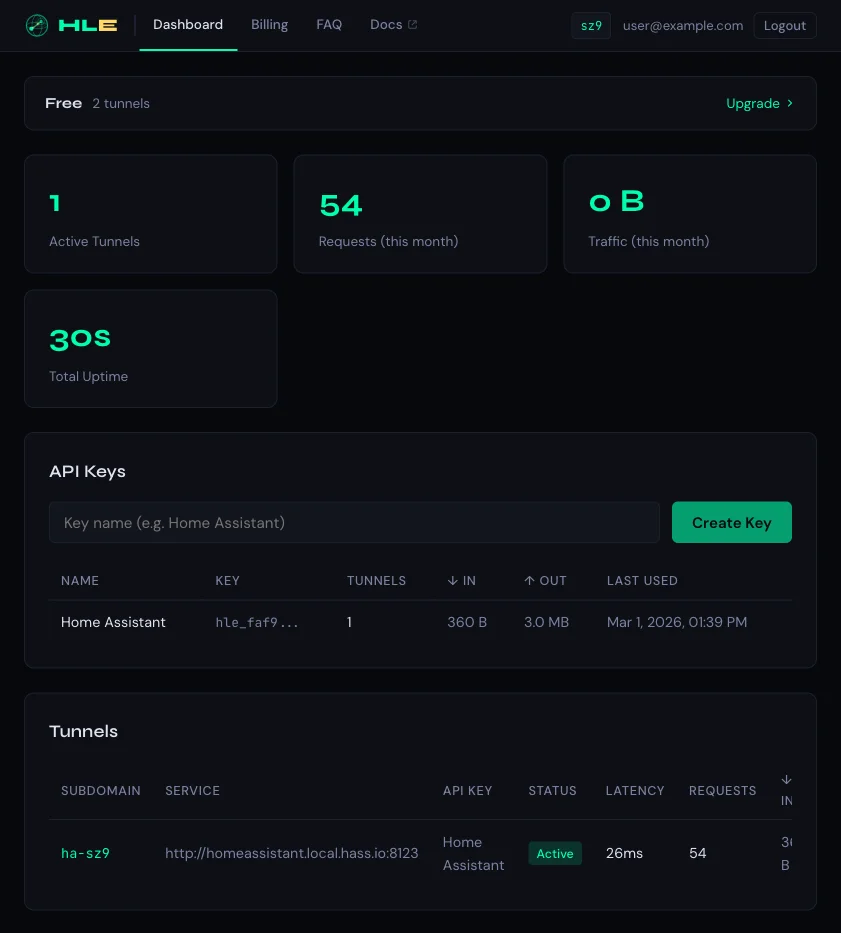
Usage statistics
The top of the dashboard displays four live counters for the current billing period:
- Active Tunnels — currently connected tunnel count
- Requests — total HTTP and WebSocket requests this month
- Traffic — total inbound data volume this month
- Total Uptime — cumulative tunnel uptime across all tunnels
Your account tier and tunnel limit are shown in the header bar (e.g. Free — 2 tunnels), with a link to upgrade if you need more capacity.
API key management
API keys authenticate your tunnel clients (CLI or Home Assistant add-on) with the HLE relay server. Each key has its own tunnel limit and usage tracking.
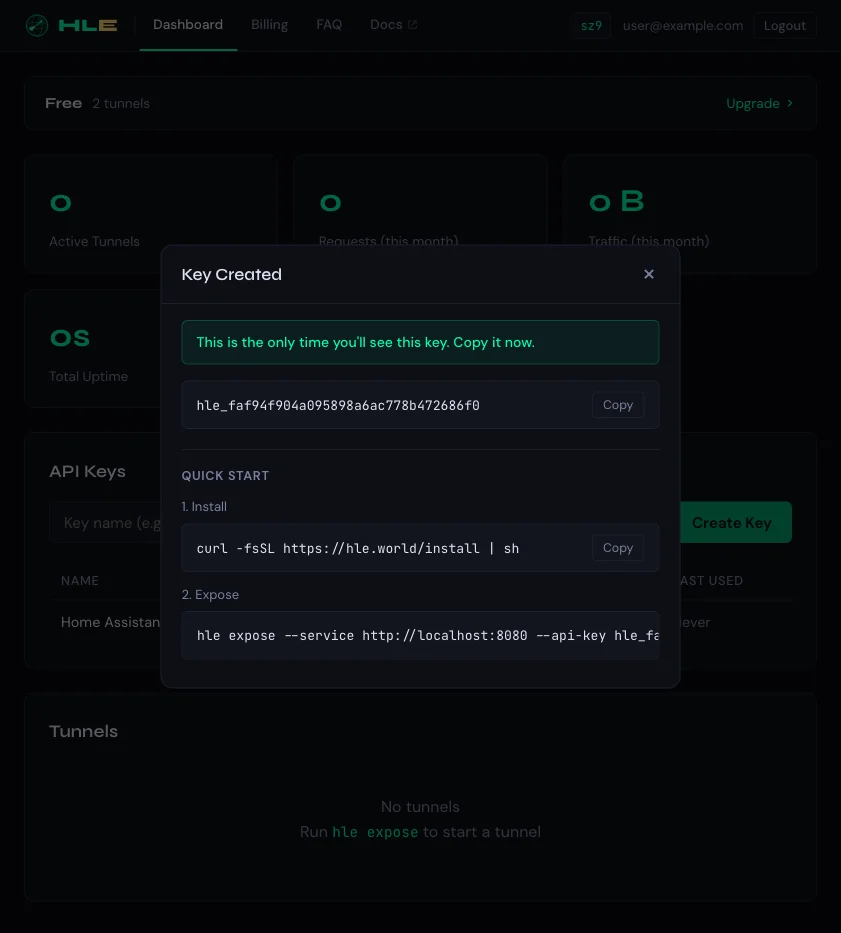
Creating a key
Type a descriptive name (e.g. “Home Assistant”, “Dev Server”) and click Create Key. The raw key is shown only once — copy it immediately. The dialog also shows Quick Start commands to install the CLI and start a tunnel.
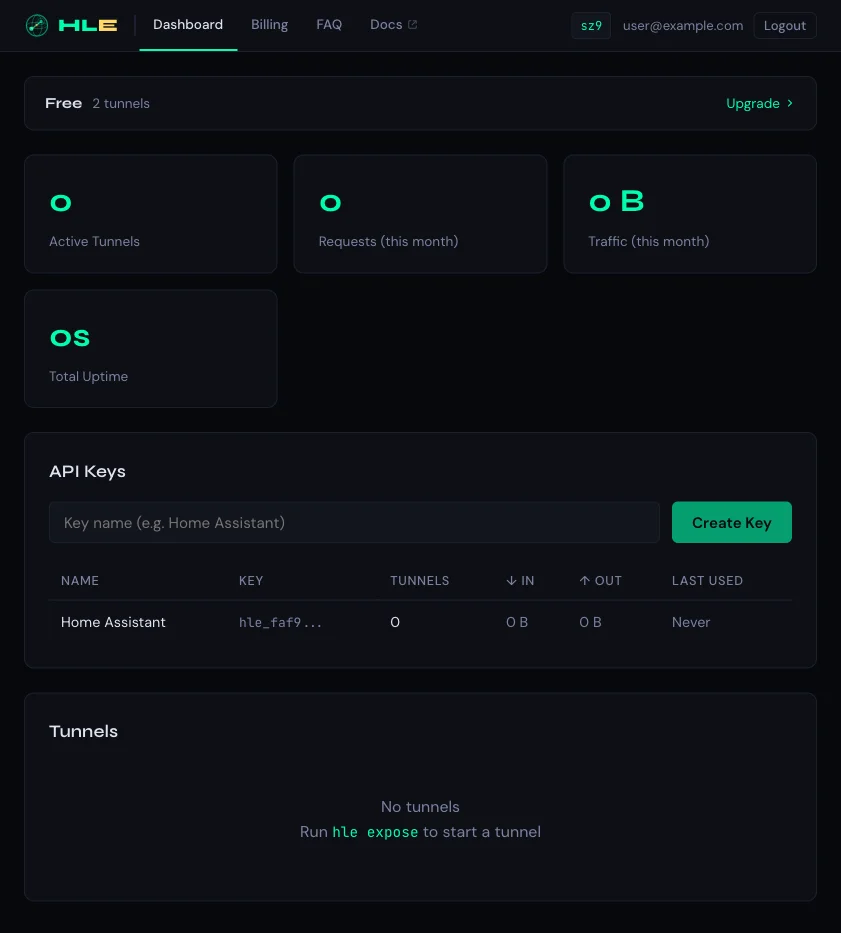
Key table
All your keys are listed in a table showing the key prefix, active tunnel count, data in/out, and last-used timestamp. Click a row to expand key details.
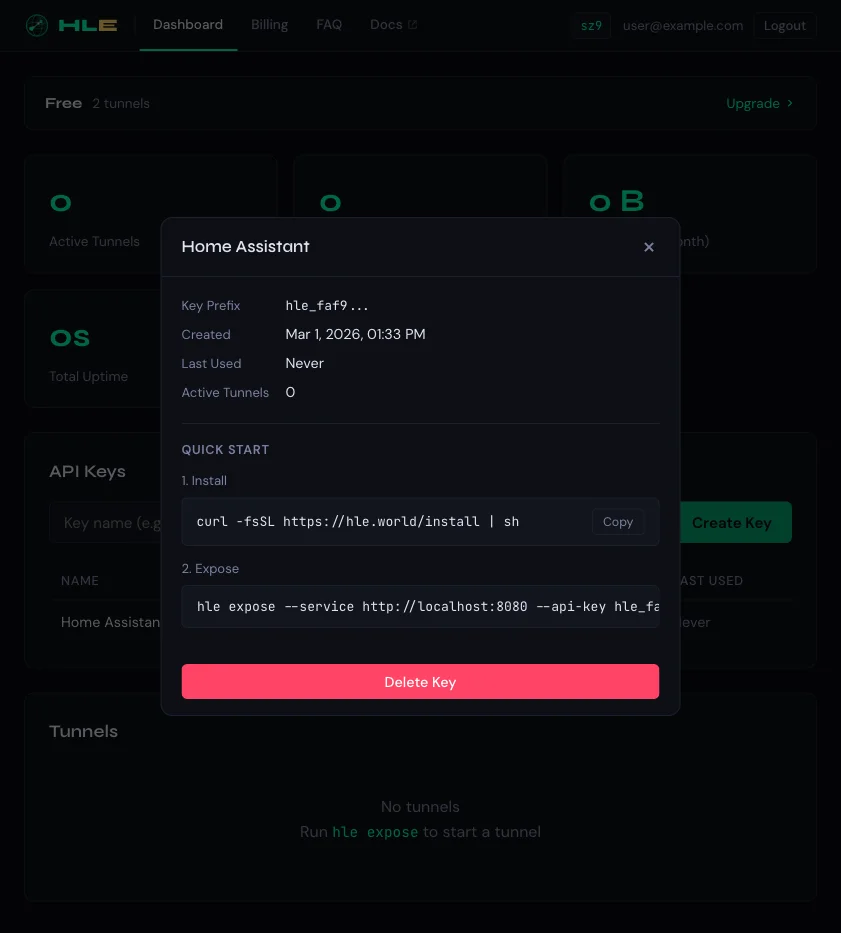
Key details
Clicking a key row opens its detail panel with the key prefix, creation date, last-used time, active tunnel count, and Quick Start commands. You can delete the key from here — this revokes it immediately and disconnects any active tunnels using it.
Tunnel list
The Tunnels section shows every tunnel connected to your account:
- Subdomain — the public URL prefix (e.g.
ha-sz9) - Service — the proxied backend URL
- API Key — which key authenticated this tunnel
- Status — Active (green) or disconnected
- Latency — round-trip time to the relay server
- Requests — total requests handled by this tunnel
- Traffic — data in and out columns
Authentication
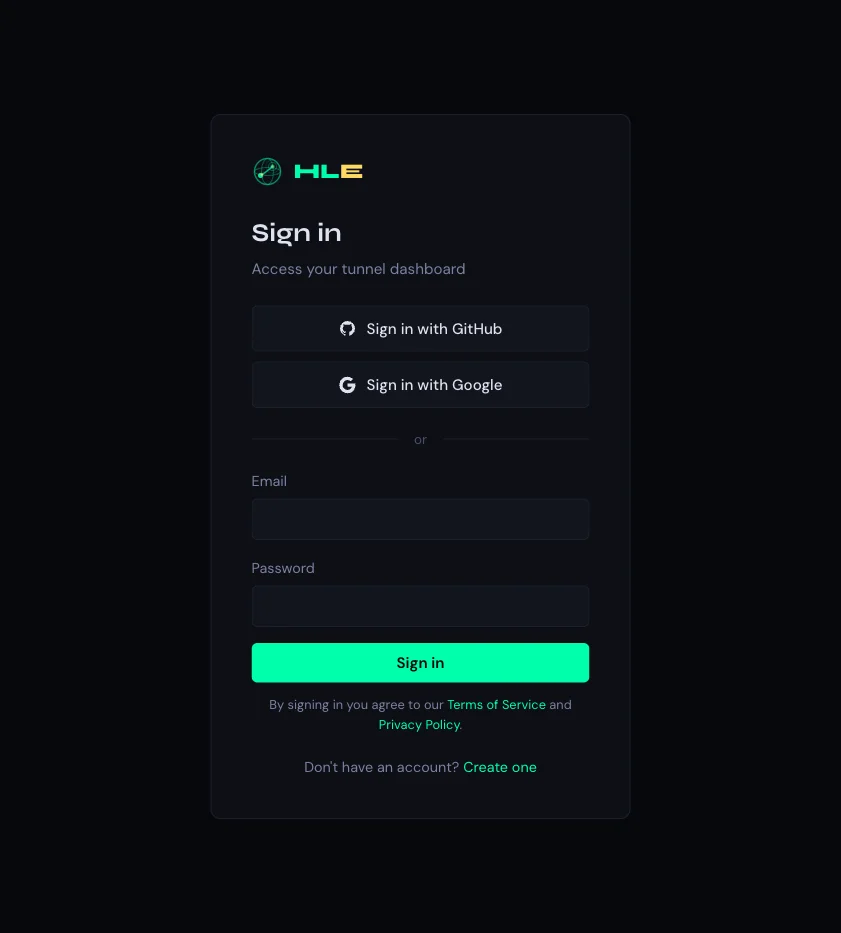
Sign in with GitHub, Google, or an email/password account. SSO providers link automatically — signing in with GitHub and then Google using the same email merges both into one account.
Per-tunnel access control
For each tunnel, you can manage who can access it through several methods:
- SSO allow-list: Add email + provider rules (any/github/google/hle) to restrict access to specific users
- PIN protection: Set a numeric PIN that visitors must enter before accessing the tunnel
- Basic Auth: Set a username/password that protects the tunnel with HTTP Basic Authentication
- Share links: Generate shareable links with embedded access tokens
Admin panel
Admin users have access to additional management features:
- User management: View all registered users, delete users
- Audit logs: View all admin actions (logins, key creation/deletion, etc.)
- Registration toggle: Enable/disable new user registration globally
- Server settings: Manage system configuration
All admin actions are logged with timestamps and user info for auditability.